Claude for Legal: Instruction Guide
A Step-by-Step Setup Guide for General Counsel & Chief Legal Officers
For legal teams with no prior AI or legal tech experience.
How to Use This Guide
This guide has been written specifically for General Counsel and Chief Legal Officers who are new to AI tools. You do not need a technical background, and you do not need to involve your IT department to get started with Claude.ai. Each step is explained in plain English, with screenshots to show you exactly what you will see on your screen.
The guide is divided into five parts:
• Part 1: What is Claude, and why does it matter for legal teams?
• Part 2: Getting started with Claude.ai (the individual/team version)
• Part 3: Setting up Claude for Enterprise (the version for whole organisations)
• Part 4: Configuring Claude specifically for legal work
• Part 5: Your first legal tasks and putting Claude to work
A Note on Screenshots
Screenshots throughout this guide reflect the Claude.ai interface as of February 2026.
Anthropic updates its interface regularly. If a screen looks slightly different, the core navigation and features remain the same.
Part 1: What Is Claude?
1.1 Understanding Claude
Claude is an AI assistant built by Anthropic, a company focused specifically on building safe and reliable AI. Think of Claude as an exceptionally capable analyst who has read millions of legal documents, research papers, contracts, and regulatory texts (and is available to your team around the clock).
Unlike a search engine (which finds existing web pages), Claude reasons through problems, drafts text, reviews documents, summarises long reports, and answers complex legal questions in natural, conversational language. You simply type what you need, and Claude responds.
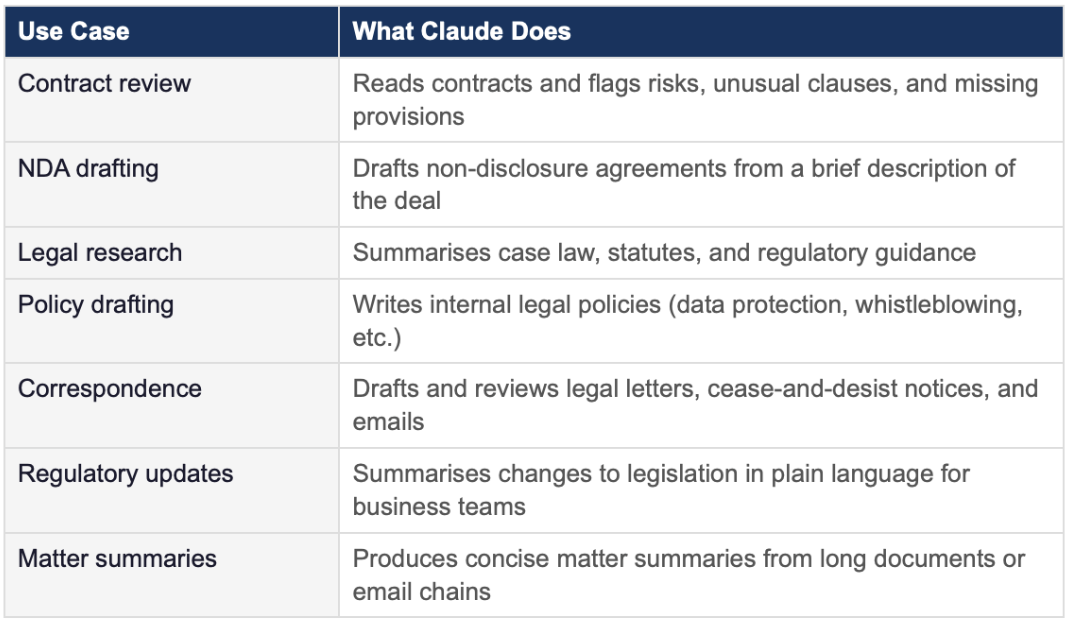
1.2 What Claude Can Do for an In-House Legal Team
⚠️ Important: Claude is a tool, not a lawyer
Claude assists with legal work, it does not replace professional legal judgment.
Always review Claude's output before sending it to clients, signing documents, or relying on it for legal advice.
Claude does not have access to privileged communications unless you provide them, and it will not retain confidential information between sessions.
1.3 Which Version Is Right for Your Team?
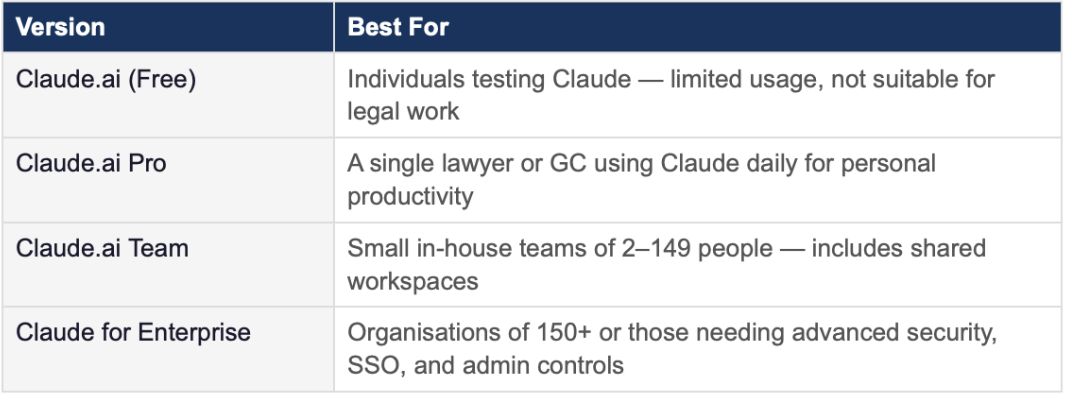
This guide covers both Claude.ai (Pro/Team) and Claude for Enterprise. Start with Part 2 if you want to get going immediately as an individual, or skip to Part 3 if you are setting up an enterprise deployment.
Part 2: Getting Started with Claude.ai
2.1 Creating Your Account
Claude.ai is accessed entirely through a web browser or mobile app. There is nothing to install on your computer to get started.
Step 1: Open your web browser and go to claude.ai
Open Google Chrome, Microsoft Edge, Safari, or any modern web browser. In the address bar at the top, type claude.ai and press Enter on your keyboard.
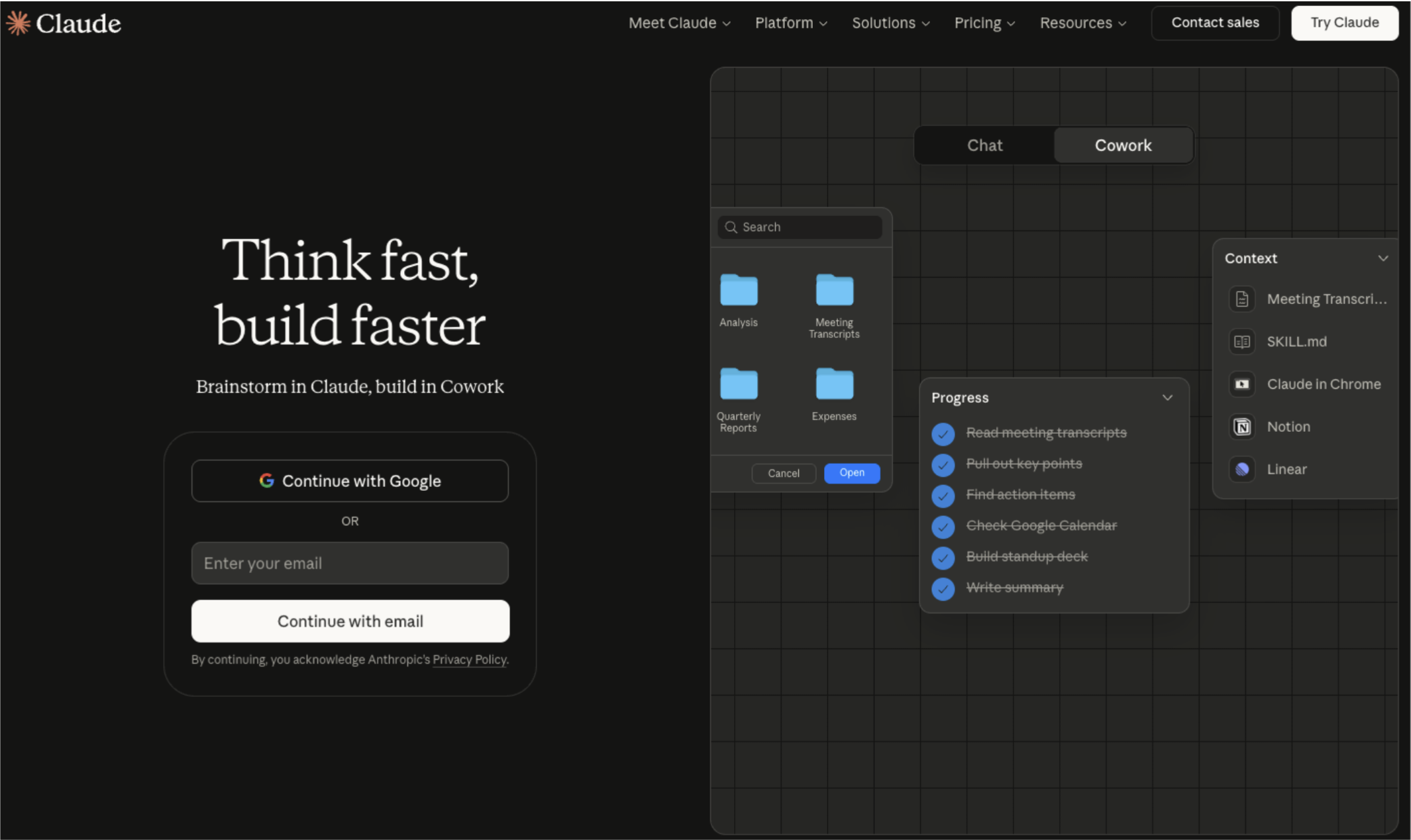
Step 2: Click 'Sign Up'
You will land on the Claude homepage. Look for the blue 'Sign Up' button in the top right corner of the page. Click it.
Step 3: Choose how you want to sign up
Claude offers three ways to create an account. You can use your existing Google account, your Apple ID, or sign up with your email address directly. For professional use, we recommend signing up with your work email address.
Option A: Sign up with Google: Click 'Continue with Google'. A pop-up window will appear. Select your work Google account and click 'Allow'. You will be taken directly into Claude.
Option B: Sign up with Apple: Click 'Continue with Apple'. Sign in with your Apple ID. Note: if you use 'Hide my email', your Apple relay address will be associated with your account.
Option C: Sign up with email: Type your work email address into the box. Click 'Continue'. Check your email inbox for a verification code from Anthropic. Type the 6-digit code into the box on screen. Create a password of at least 12 characters.
💡 Use your work email address
Using your work email makes it easier to transition to a Team or Enterprise account later, and ensures your legal work stays within your professional context rather than a personal account.
Step 4: Verify your email (if signing up with email)
Anthropic will send a verification email to the address you entered. Open your email inbox and look for an email with the subject line 'Verify your email for Claude'. Open the email and click the blue 'Verify Email' button, or copy and paste the 6-digit code back into the Claude website.
Step 5: You are in
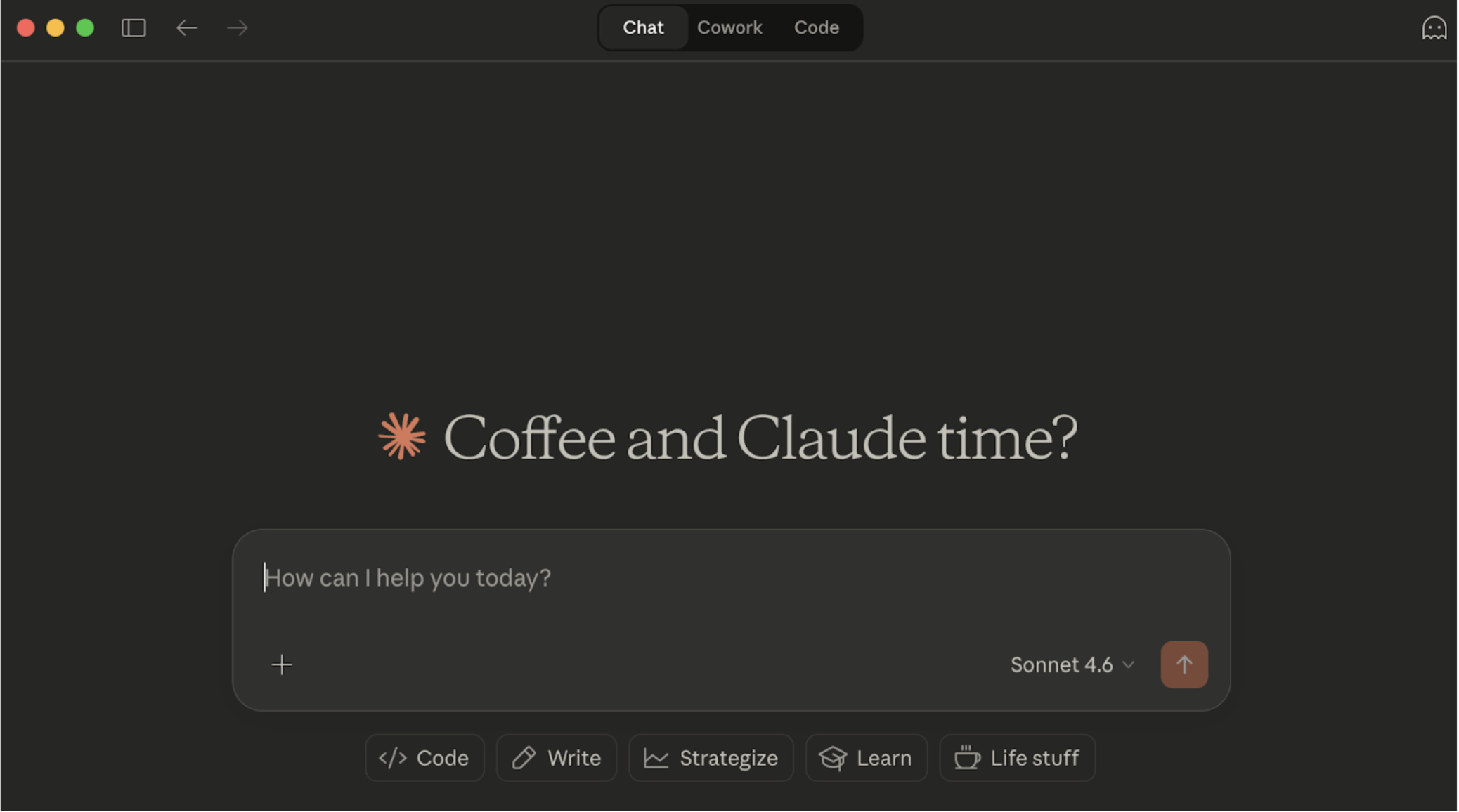
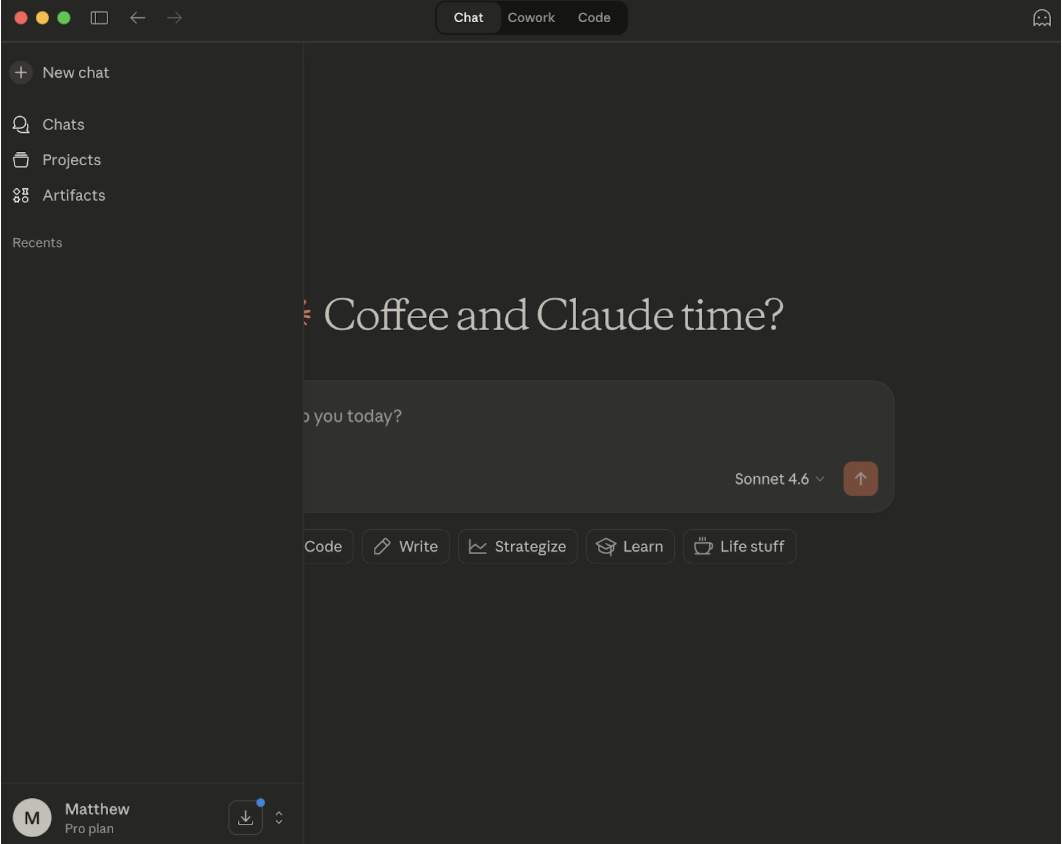
Once verified, you will be taken to the Claude.ai chat interface. You will see a large text box in the middle of the screen where you can type your first message to Claude.
2.2 Choosing the Right Plan
A free account gives you limited access. For professional legal use, you should upgrade to Pro (for individuals) or Team (for a group of lawyers).
How to upgrade to Pro or Team
Step 1: Click your profile icon. Look for the circular icon in the bottom-left corner of the screen showing your initials or photo. Click it.
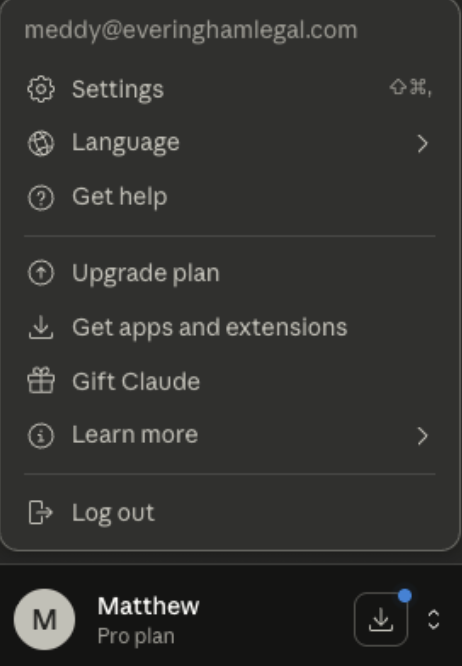
Step 2: Click 'Upgrade Plan'. A menu will appear. Click 'Upgrade Plan' or 'Upgrade to Pro'.
Step 3: Select your plan. Choose 'Pro' for individual use (one person) or 'Team' if you have 2 or more lawyers who will use Claude. Review the pricing and click 'Subscribe'.
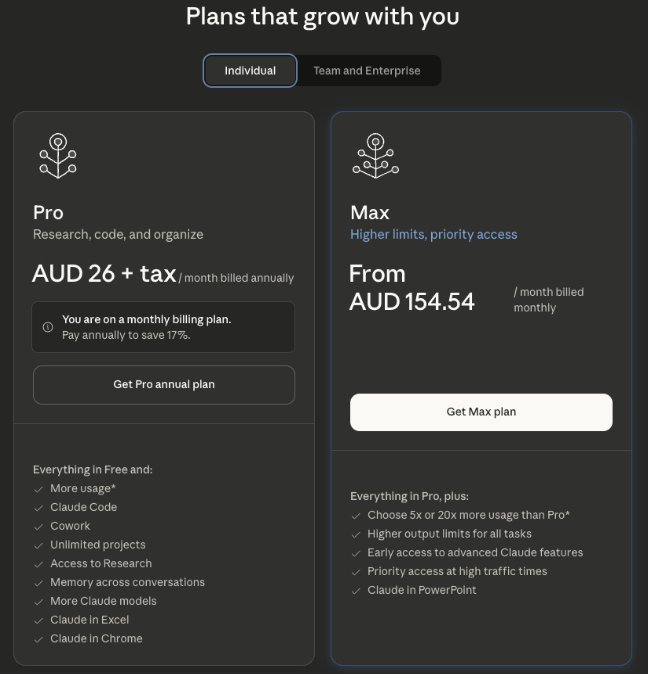
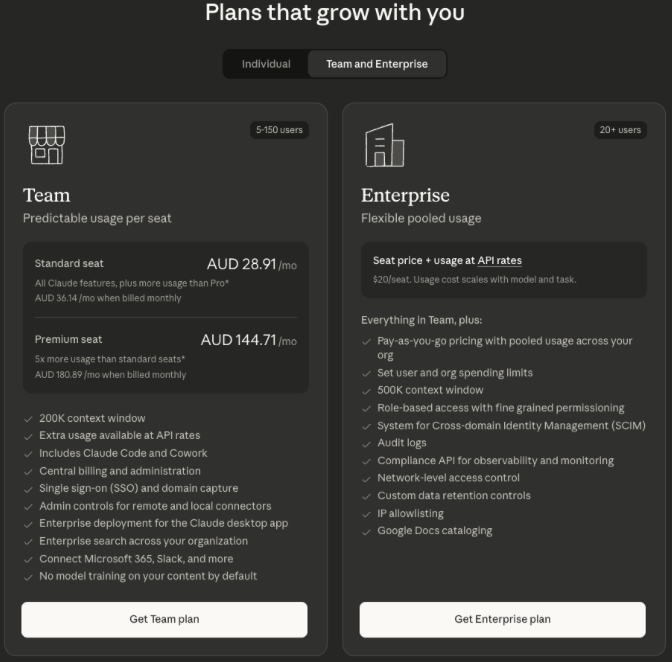
Step 4: Enter payment details. Enter your credit card or request an invoice if your organisation requires billing through accounts payable. Click 'Confirm'.
💡 Team plan: minimum seats
The Claude.ai Team plan requires a minimum of 2 seats.
If you are a team of one GC, start with Pro. Add Team seats when you are ready to roll out to junior lawyers, legal operations staff, or paralegals.
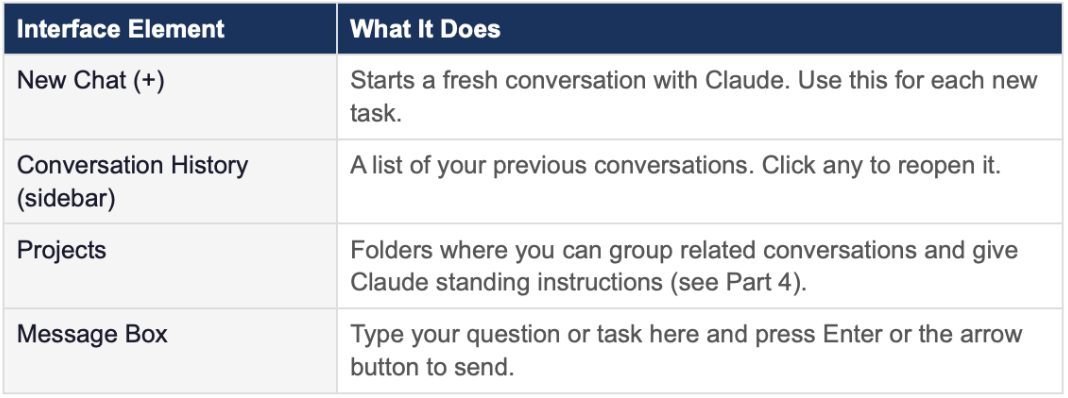
2.3 Navigating the Claude.ai Interface
Once logged in, the Claude interface has four main areas you need to know:
2.4 Installing the Mobile App (Optional)
Claude is also available as a free app on iPhone and Android. This is useful for reviewing documents or asking quick questions when away from your desk.
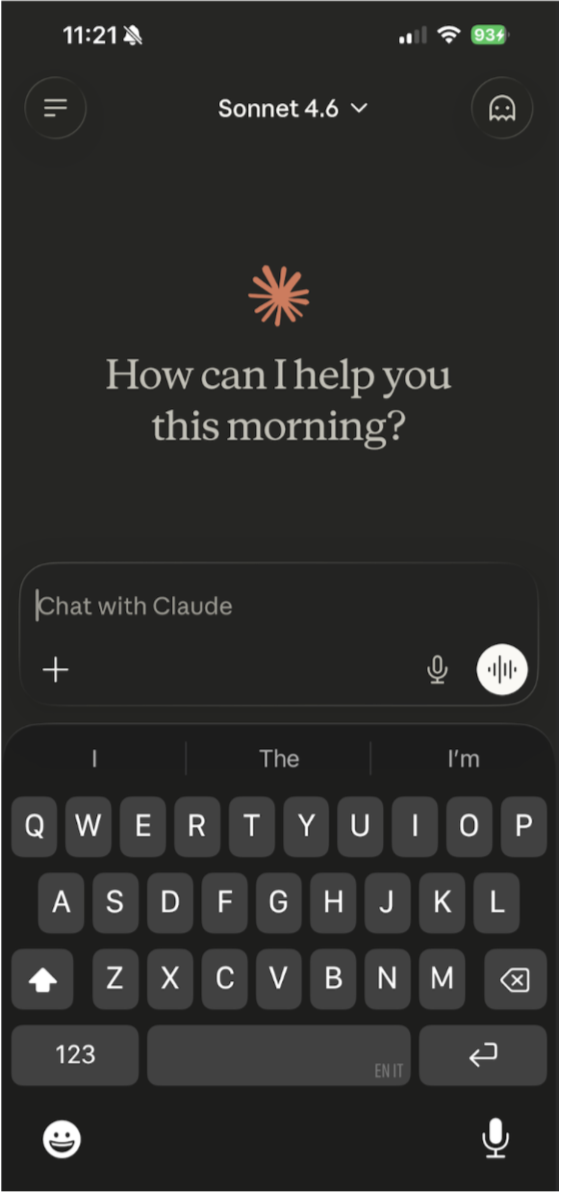
iPhone: Open the App Store. Search for 'Claude by Anthropic'. Tap 'Get' to install. Sign in with the same account you created on the website.
Android: Open the Google Play Store. Search for 'Claude by Anthropic'. Tap 'Install'. Sign in with the same account.
💡 Your conversations sync automatically
Anything you start on the website is available on your phone, and vice versa.
All you need is the same login credentials.
Part 3: Setting Up Claude for Enterprise
Claude for Enterprise is the version designed for larger organisations that require centralised administration, advanced security controls, and the ability to connect Claude to internal data sources. This section walks through how your organisation's technical lead (or your IT team, guided by you) sets up Enterprise (and how you as GC interact with the result).
3.1 Who Needs Enterprise?
Consider Claude for Enterprise if your organisation has any of the following requirements:
• Your legal team has 150 or more users, or you want to roll out Claude across the broader business
• You need Single Sign-On (SSO) so staff log in with their existing company credentials
• You need formal data processing agreements and enhanced security commitments
• You want to connect Claude to internal systems such as contract management software, matter management tools, or SharePoint
• You require centralised billing, usage reporting, and the ability to turn Claude on and off for specific teams
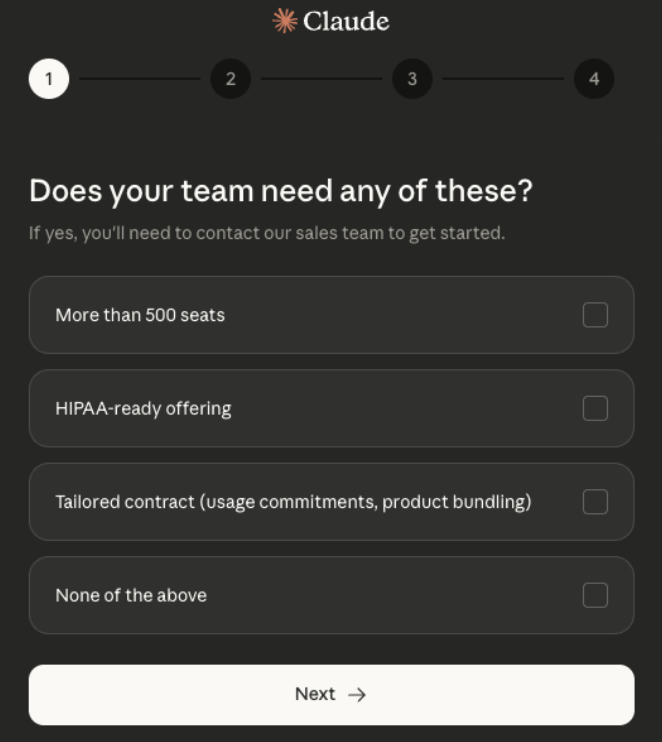
3.2 Getting Enterprise: Contact Anthropic's Sales Team
Claude for Enterprise is not self-serve. You will need to contact Anthropic's sales team to get started.
Step 1: Go to anthropic.com/contact-sales. Open your browser and navigate to anthropic.com/contact-sales. Fill in the contact form with your name, organisation, email address, and approximate number of users.
Step 2: Attend a discovery call. An Anthropic account executive will reach out within 1–2 business days to discuss your requirements, demonstrate the Enterprise product, and provide a commercial proposal.
Step 3: Review and sign the Enterprise Agreement. Your legal team (that is you) will review the Master Service Agreement, Data Processing Agreement, and any applicable security schedules. Anthropic's Enterprise agreements include commitments around data handling, including that your data is not used to train Anthropic's models.
🔒 Data security under Enterprise
Under Claude for Enterprise, Anthropic commits that:
• Your data is not used to train Claude models.
• Conversations are encrypted in transit and at rest.
• You can request data deletion.
Review the Data Processing Agreement carefully before signing, just as you would any other SaaS vendor agreement.
Step 4: Work with your IT team to configure SSO. Once contracted, Anthropic will provide your IT team with technical documentation to connect Claude to your organisation's identity provider (such as Microsoft Azure Active Directory or Okta). Staff will then be able to log in to Claude using their normal company username and password — no separate account needed.
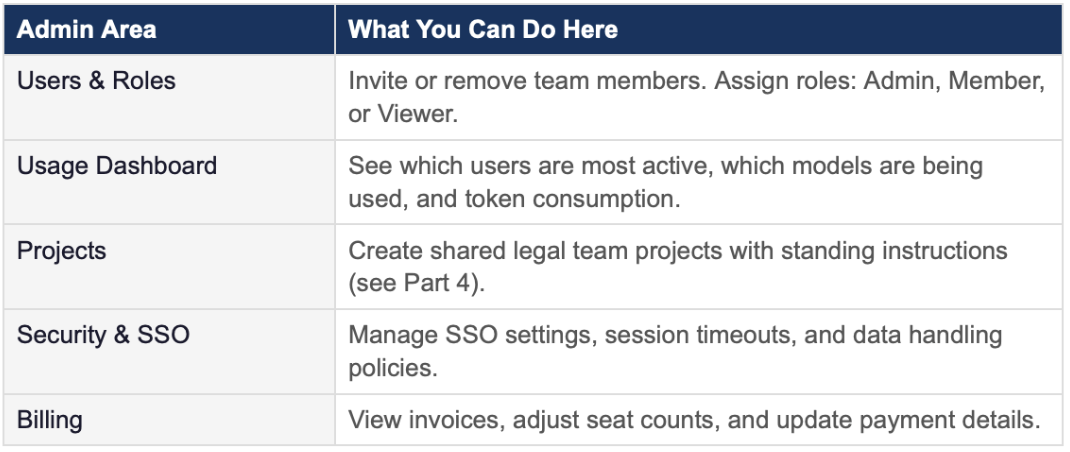
3.3 The Enterprise Admin Console: A GC's Overview
As GC, you may be given an 'Admin' role in the Enterprise console. This gives you visibility and control over how Claude is being used across the legal team.
3.4 Inviting Your Legal Team
Once your Enterprise account is configured, you can invite the rest of your legal team.
Step 1: Go to the Admin Console. Log in to Claude. Click your profile icon (bottom left) and select 'Admin Console'.
Step 2: Click 'Users' in the left sidebar. This shows all current users in your organisation.
Step 3: Click 'Invite Members'. Enter the work email addresses of each lawyer, paralegal, or legal operations staff member you want to add. You can paste a list of emails separated by commas.
Step 4: Select a role. For most legal team members, 'Member' is appropriate. Reserve 'Admin' for yourself and one or two legal operations leads who will manage the configuration.
Step 5: Click 'Send Invitations'. Each person will receive an email inviting them to activate their Claude account. If SSO is enabled, they simply click the link and sign in with their usual work credentials.
Part 4: Configuring Claude for Legal Work
Out of the box, Claude is highly capable. But with a few simple configuration steps, you can make it significantly more useful for your specific legal team by creating Projects, writing system instructions, and uploading reference documents.
4.1 Understanding Projects
A Project is like a dedicated workspace inside Claude for a particular practice area or matter type. When you send a message inside a Project, Claude automatically remembers the instructions and documents you have loaded into that Project (you do not need to repeat yourself each time).
For example, you might create the following Projects:
• General Legal Team: for day-to-day tasks
• Contract Review: pre-loaded with your standard contract playbook
• Employment Law: pre-loaded with relevant legislation and policies
• M&A Due Diligence: for deal-specific work
4.2 Creating a New Project
Step 1: Click 'Projects' in the left sidebar. If you do not see 'Projects', look for a folder icon on the left side of the screen.
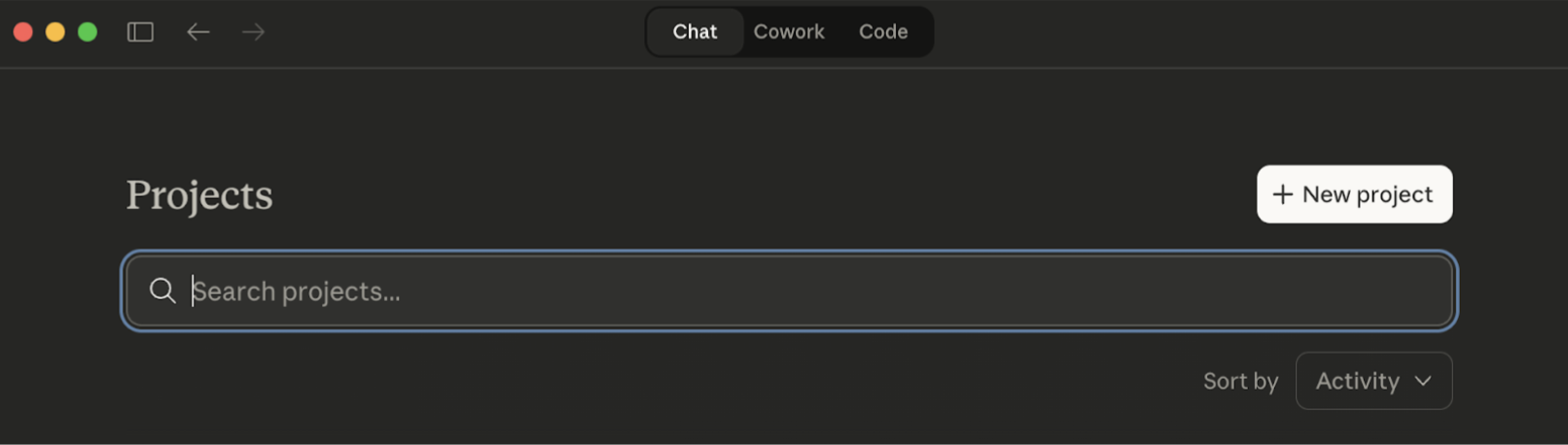
Step 2: Click '+ New Project'. A dialogue box will appear. Give your project a clear name, such as 'Contract Review' or 'Legal Team — General'.
Step 3: Click 'Create Project'. Your new project will appear in the sidebar. Click on it to open it.
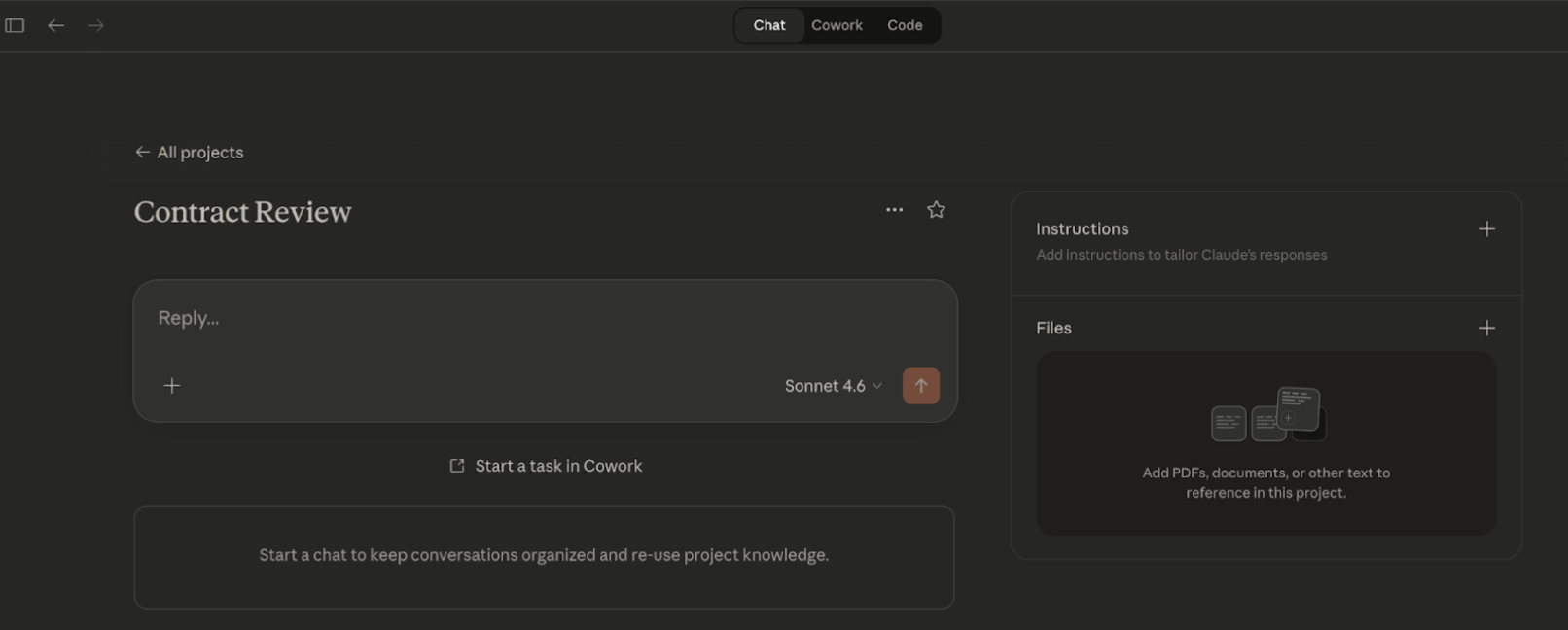
4.3 Writing System Instructions (Custom Prompts)
System instructions are standing directions that tell Claude how to behave in this particular Project. Think of it as a briefing note Claude reads before every conversation in that workspace. This is one of the most powerful configuration steps you can take.
Step 1: Inside your Project, click 'Edit Project' or the settings icon. Look for a gear icon or 'Edit' link near the project name.
Step 2: Find the 'Instructions' or 'System Prompt' field. This is a large text box where you can type your instructions.
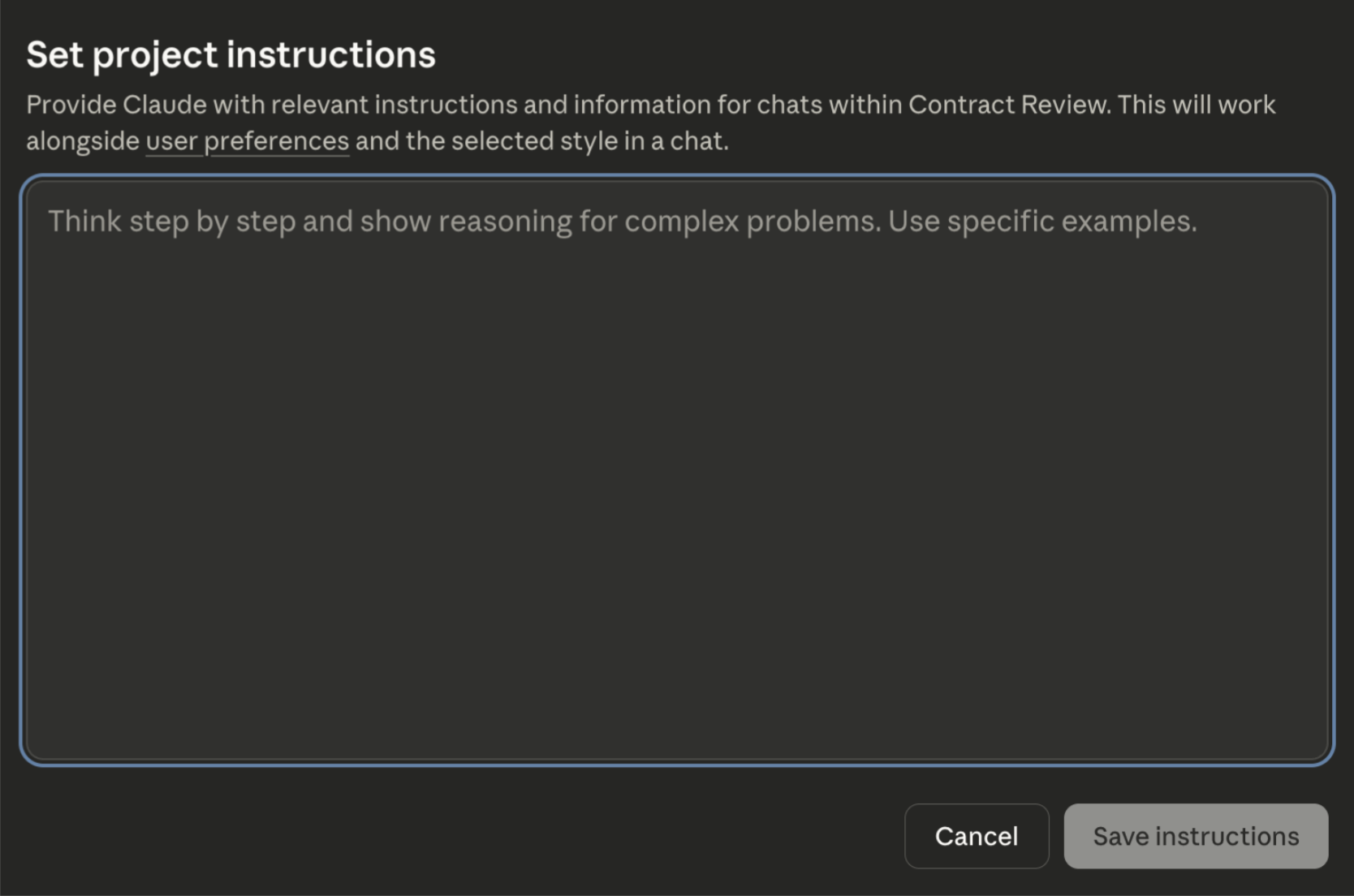
Step 3: Write your instructions. Below is a recommended starting template for an in-house legal team:
Sample System Instructions — General Legal Team Project
You are a senior legal assistant working with an in-house legal team at [Company Name]. Your role is to assist qualified lawyers with legal research, document drafting, contract review, and legal analysis.
Always:
- Provide accurate, well-reasoned legal analysis
- Flag areas of legal risk or uncertainty explicitly
- Use professional legal language appropriate for in-house counsel
- Note when a matter requires external specialist advice
- Apply Australian law unless instructed otherwise
Never:
- Present analysis as definitive legal advice to clients
- Make assumptions about jurisdiction without clarifying
- Omit material risks even if the user has not asked about them
Format responses clearly. Use headings and numbered lists for analysis. Keep summaries under 500 words unless asked for more.
Customise this template by replacing '[Company Name]' with your organisation's name and adjusting any instructions to reflect your team's working style, jurisdiction, and preferred output format.
Step 4: Click 'Save'. Your instructions are now active. Every new conversation you start in this Project will begin with Claude already briefed.
4.4 Uploading Reference Documents
You can upload documents directly into a Project so Claude can reference them in every conversation. This is ideal for uploading your standard contract templates, internal policies, playbooks, or frequently referenced legislation.
Step 1: Open your Project and find the 'Knowledge' or 'Files' section. In the Project settings or sidebar, look for a section labelled 'Project Knowledge', 'Files', or a paperclip icon.
Step 2: Click 'Upload files' or 'Add to project'. A file browser will open. Navigate to the document you want to upload.
Step 3: Select your file and click 'Open'. Claude supports PDF, Word (.docx), and text files. Your contract templates, NDAs, playbooks, and policies are ideal candidates.
Step 4: Wait for the upload to complete. You will see the file appear in the Project's knowledge base. Claude can now reference this document in any conversation within the Project.
📁 What to upload to your Legal Project
Suggested files to upload:
• Your standard NDA template
• Your contract review playbook or risk matrix
• Key internal policies (data protection, conflicts, signing authority)
• Your organisation's preferred legal drafting style guide
• Any frequently referenced legislation (in PDF form)
4.5 Setting Up the Legal Plugin (Cowork/Desktop Advanced)
If your team uses Claude Desktop with Cowork (Anthropic's desktop application for advanced file-based work), you can additionally install the Legal Plugin, which provides pre-built commands optimised for document review, risk flagging, and compliance work.
Step 1: Open Claude Desktop on your Mac. Download and install Claude Desktop from claude.ai if you have not done so already.
Step 2: Click the 'Cowork' tab. This is found in the left navigation panel.
Step 3: Click 'Plugins' in the left sidebar. Then click 'Browse and Install'.
Step 4: Find 'Legal' in the plugin list. Click 'Install'. The plugin provides pre-configured commands for document review, risk flagging, and compliance analysis.
Step 5: Activate commands using '/'. When working in Cowork, type '/' to see available Legal commands, including document review and risk flag templates.
⚠️ Cowork is macOS only
Claude Desktop with Cowork currently runs on macOS only (no Windows support at this time).
For Windows users or browser-based work, Projects with system instructions (Part 4.2–4.4) deliver equivalent benefits.
Part 5: Your First Legal Tasks
You are now set up. This final section gives you five ready-to-use prompts — one for each common in-house legal task — so you can see immediately what Claude can do.
Task 1: Contract Review
Upload a contract to Claude (click the paperclip icon in the message box to attach a PDF or Word file), then type the following:
Review this contract and provide: (1) a one-paragraph executive summary of what is being agreed; (2) a list of the top 5 risk areas for our organisation; and (3) any clauses that are unusual or missing compared to market standard. Flag any issues that require urgent attention.
Task 2: NDA Drafting
Start a new chat and type:
Draft a mutual non-disclosure agreement for an early-stage commercial partnership discussion between [Company A] and [Company B]. The agreement should cover: confidential information shared in connection with a potential commercial partnership; a 3-year confidentiality period; governed by the laws of New South Wales, Australia; and include appropriate carve-outs for publicly available information and legally required disclosures.
Task 3: Regulatory Update Summary
Paste the text of a regulatory update, legislation extract, or guidance note into Claude and type:
Summarise the key changes in this regulatory update in plain English. Then produce a brief 'what this means for our business' section — written for a non-legal audience — identifying the top 3 actions our organisation should take in response. Keep the total summary under 400 words.
Task 4: Matter Summary
Paste a long email thread, set of notes, or matter documents and type:
Produce a concise matter summary covering: (1) the key facts; (2) the legal issues in dispute or under consideration; (3) the current status and next steps; and (4) any outstanding decisions required from the legal team. Format as a structured brief suitable for a management update.
Task 5: Legal Policy Drafting
To draft a new internal policy, type:
Draft a Conflicts of Interest Policy for [Company Name], an Australian company with approximately [number] employees. The policy should cover: (1) what constitutes a conflict of interest; (2) disclosure obligations and process; (3) management and mitigation of conflicts; (4) consequences of non-compliance. Tone should be professional but accessible to a non-legal audience. Include a declaration form at the end.
⚠️ Always review Claude's output
Claude's output is a strong starting point, not a finished product.
Review every document for accuracy, apply your professional judgment, and update any details specific to your matter before use.
Over time, you will develop a sense of where Claude excels and where it needs closer review.
Appendix: Quick Reference & Troubleshooting
Quick Reference — Keyboard Shortcuts
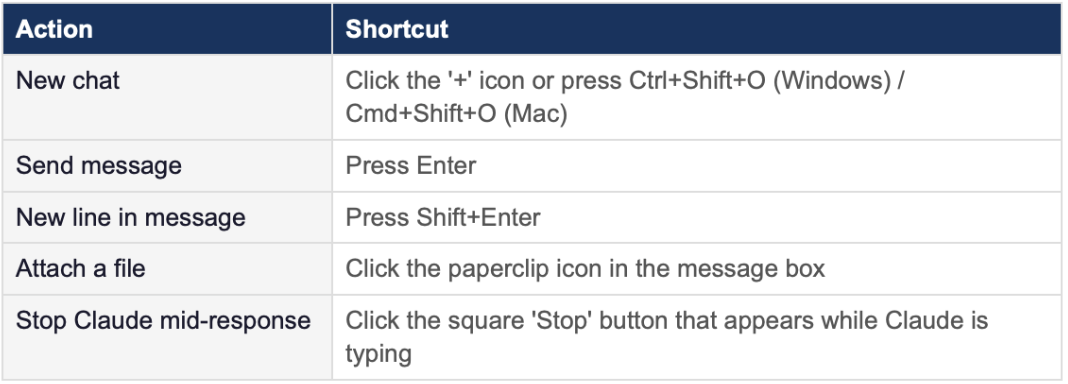
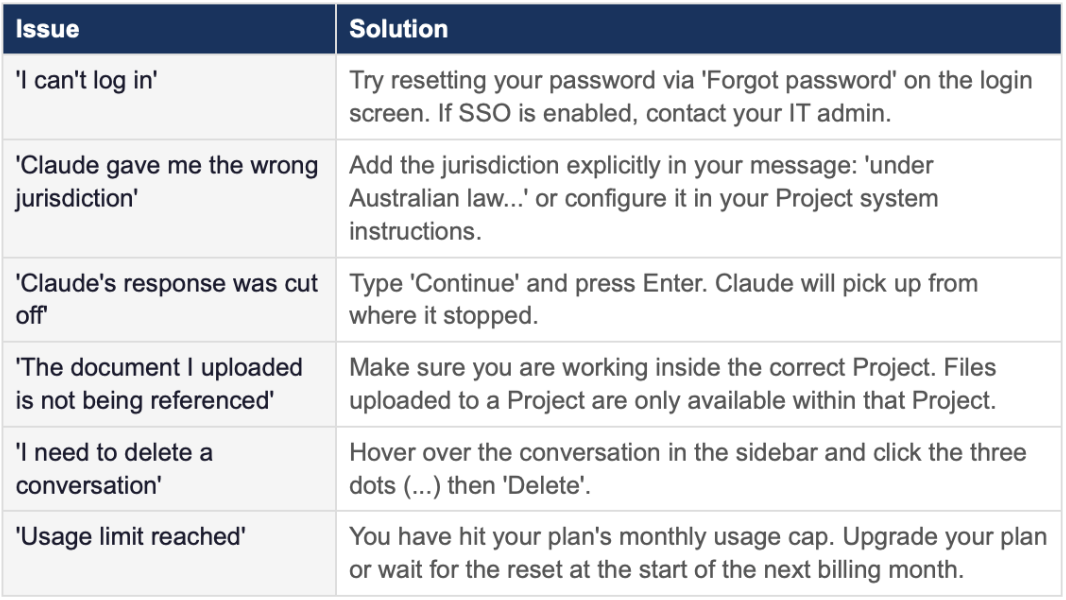
Troubleshooting Common Issues
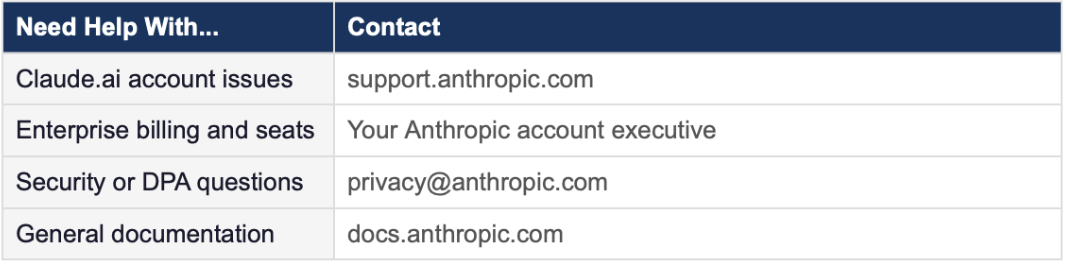
Key Contacts
This guide is provided for informational purposes. Verify all product features and pricing at claude.ai and anthropic.com.
